<!DOCTYPE html>
    <html lang="vi" xmlns="http://www.w3.org/1999/xhtml" prefix="og: http://ogp.me/ns#">
    <head>
<title>HỆ THỐNG CHUYÊN MÔN TRƯỜNG PÉTRUS KÝ</title>
<meta name="description" content="Những điều cần làm sau khi cập nhật lên Windows 11 - Savefile - Tin Tức -...">
<meta name="author" content="HỆ THỐNG CHUYÊN MÔN TRƯỜNG PÉTRUS KÝ">
<meta name="copyright" content="HỆ THỐNG CHUYÊN MÔN TRƯỜNG PÉTRUS KÝ []">
<meta name="generator" content="NukeViet v4.5">
<meta name="viewport" content="width=device-width, initial-scale=1">
<meta http-equiv="Content-Type" content="text/html; charset=utf-8">
<meta property="og:title" content="Những điều cần làm sau khi cập nhật lên Windows 11">
<meta property="og:type" content="website">
<meta property="og:description" content="Savefile - Tin Tức - https&#x3A;&#x002F;&#x002F;cm.pek.edu.vn&#x002F;vi&#x002F;news&#x002F;savefile&#x002F;thong-tin-cong-nghe&#x002F;nhung-dieu-can-lam-sau-khi-cap-nhat-len-windows-11-315.html">
<meta property="og:site_name" content="HỆ THỐNG CHUYÊN MÔN TRƯỜNG PÉTRUS KÝ">
<meta property="og:url" content="https://cm.pek.edu.vn/vi/news/savefile/thong-tin-cong-nghe/nhung-dieu-can-lam-sau-khi-cap-nhat-len-windows-11-315.html">
<link rel="shortcut icon" href="https://cm.pek.edu.vn/uploads/favicon.ico">
<link rel="canonical" href="https://cm.pek.edu.vn/vi/news/savefile/thong-tin-cong-nghe/nhung-dieu-can-lam-sau-khi-cap-nhat-len-windows-11-315.html">
<link rel="alternate" href="https://cm.pek.edu.vn/vi/news/rss/" title="Tin Tức" type="application/rss+xml">
<link rel="alternate" href="https://cm.pek.edu.vn/vi/news/rss/ke-hoach-lam-viec/" title="Tin Tức - Kế hoạch làm việc" type="application/rss+xml">
<link rel="alternate" href="https://cm.pek.edu.vn/vi/news/rss/ke-hoach-lam-viec-tieu-hoc/" title="Tin Tức - Kế hoạch làm việc Tiểu học" type="application/rss+xml">
<link rel="alternate" href="https://cm.pek.edu.vn/vi/news/rss/thong-bao-chuyen-mon/" title="Tin Tức - Thông báo chuyên môn" type="application/rss+xml">
<link rel="alternate" href="https://cm.pek.edu.vn/vi/news/rss/thong-bao-chuyen-mon-tieu-hoc/" title="Tin Tức - Thông báo chuyên môn Tiểu học" type="application/rss+xml">
<link rel="alternate" href="https://cm.pek.edu.vn/vi/news/rss/hoat-dong-chuyen-mon-trai-nghiem/" title="Tin Tức - Hoạt động trải nghiệm-sáng tạo" type="application/rss+xml">
<link rel="alternate" href="https://cm.pek.edu.vn/vi/news/rss/tai-lieu-huong-dan/" title="Tin Tức - Tài liệu hướng dẫn" type="application/rss+xml">
<link rel="alternate" href="https://cm.pek.edu.vn/vi/news/rss/tu-lieu-giao-duc/" title="Tin Tức - Tư liệu giáo dục" type="application/rss+xml">
<link rel="alternate" href="https://cm.pek.edu.vn/vi/news/rss/tai-lieu-giang-day-tap-huan/" title="Tin Tức - Tài liệu giảng dạy-tập huấn" type="application/rss+xml">
<link rel="alternate" href="https://cm.pek.edu.vn/vi/news/rss/de-thi-cap-truong/" title="Tin Tức - Đề thi cấp trường" type="application/rss+xml">
<link rel="alternate" href="https://cm.pek.edu.vn/vi/news/rss/de-thi-nam-2019-2020/" title="Tin Tức - 2019-2020" type="application/rss+xml">
<link rel="alternate" href="https://cm.pek.edu.vn/vi/news/rss/2020-2021/" title="Tin Tức - 2020-2021" type="application/rss+xml">
<link rel="alternate" href="https://cm.pek.edu.vn/vi/news/rss/de-thi-hoc-ky-1/" title="Tin Tức - Đề thi học kỳ 1" type="application/rss+xml">
<link rel="alternate" href="https://cm.pek.edu.vn/vi/news/rss/de-thi-hoc-ky-2/" title="Tin Tức - Đề thi học kỳ 2" type="application/rss+xml">
<link rel="alternate" href="https://cm.pek.edu.vn/vi/news/rss/2021-2022/" title="Tin Tức - 2021-2022" type="application/rss+xml">
<link rel="alternate" href="https://cm.pek.edu.vn/vi/news/rss/de-thi-hsg-cap-huyen-thanh-pho/" title="Tin Tức - Đề thi cấp TP" type="application/rss+xml">
<link rel="alternate" href="https://cm.pek.edu.vn/vi/news/rss/de-thi-cap-tinh-thanh-pho/" title="Tin Tức - Đề thi cấp tỉnh" type="application/rss+xml">
<link rel="alternate" href="https://cm.pek.edu.vn/vi/news/rss/de-thi-cap-quoc-gia/" title="Tin Tức - Đề thi cấp QG" type="application/rss+xml">
<link rel="alternate" href="https://cm.pek.edu.vn/vi/news/rss/van-ban-hanh-chinh/" title="Tin Tức - Văn bản hành chính" type="application/rss+xml">
<link rel="alternate" href="https://cm.pek.edu.vn/vi/news/rss/van-ban-petrus-ky/" title="Tin Tức - Văn bản trường" type="application/rss+xml">
<link rel="alternate" href="https://cm.pek.edu.vn/vi/news/rss/vb-phong-gddt/" title="Tin Tức - Văn bản PGD" type="application/rss+xml">
<link rel="alternate" href="https://cm.pek.edu.vn/vi/news/rss/vb-so-gddt/" title="Tin Tức - Văn bản SGD" type="application/rss+xml">
<link rel="alternate" href="https://cm.pek.edu.vn/vi/news/rss/van-ban-bo-gddt/" title="Tin Tức - VB Bộ GDĐT" type="application/rss+xml">
<link rel="alternate" href="https://cm.pek.edu.vn/vi/news/rss/dien-dan-giao-duc/" title="Tin Tức - Diễn đàn giáo dục" type="application/rss+xml">
<link rel="alternate" href="https://cm.pek.edu.vn/vi/news/rss/infographics/" title="Tin Tức - Infographics" type="application/rss+xml">
<link rel="alternate" href="https://cm.pek.edu.vn/vi/news/rss/thong-tin-cong-nghe/" title="Tin Tức - Thông tin công nghệ" type="application/rss+xml">
<link rel="alternate" href="https://cm.pek.edu.vn/vi/news/rss/bieu-mau-noi-bo/" title="Tin Tức - Biểu mẫu nội bộ" type="application/rss+xml">
<link rel="alternate" href="https://cm.pek.edu.vn/vi/news/rss/phan-mem-bao-mat/" title="Tin Tức - Phần mềm-bảo mật" type="application/rss+xml">
<link rel="alternate" href="https://cm.pek.edu.vn/vi/news/rss/goc-nhin-giao-duc/" title="Tin Tức - Góc nhìn giáo dục" type="application/rss+xml">
<link rel="alternate" href="https://cm.pek.edu.vn/vi/news/rss/thi-tot-nghiep-va-tuyen-sinh/" title="Tin Tức - Thi tốt nghiệp và tuyển sinh" type="application/rss+xml">
<link rel="alternate" href="https://cm.pek.edu.vn/vi/news/rss/tin-tuc-trung-tam/" title="Tin Tức - Tin tức trung tâm Ngoại ngữ" type="application/rss+xml">
<link rel="alternate" href="https://cm.pek.edu.vn/vi/news/rss/bai-tap-online/" title="Tin Tức - Bài tập online" type="application/rss+xml">
<link rel="alternate" href="https://cm.pek.edu.vn/vi/news/rss/khoi-1/" title="Tin Tức - Khối 1" type="application/rss+xml">
<link rel="alternate" href="https://cm.pek.edu.vn/vi/news/rss/toan/" title="Tin Tức - Toán" type="application/rss+xml">
<link rel="alternate" href="https://cm.pek.edu.vn/vi/news/rss/tieng-viet/" title="Tin Tức - Tiếng Việt" type="application/rss+xml">
<link rel="alternate" href="https://cm.pek.edu.vn/vi/news/rss/tieng-anh/" title="Tin Tức - Tiếng Anh" type="application/rss+xml">
<link rel="alternate" href="https://cm.pek.edu.vn/vi/news/rss/khoi-2/" title="Tin Tức - Khối 2" type="application/rss+xml">
<link rel="alternate" href="https://cm.pek.edu.vn/vi/news/rss/toan-45/" title="Tin Tức - Toán" type="application/rss+xml">
<link rel="alternate" href="https://cm.pek.edu.vn/vi/news/rss/tieng-viet-46/" title="Tin Tức - Tiếng Việt" type="application/rss+xml">
<link rel="alternate" href="https://cm.pek.edu.vn/vi/news/rss/tieng-anh-47/" title="Tin Tức - Tiếng Anh" type="application/rss+xml">
<link rel="alternate" href="https://cm.pek.edu.vn/vi/news/rss/khoi-3/" title="Tin Tức - Khối 3" type="application/rss+xml">
<link rel="alternate" href="https://cm.pek.edu.vn/vi/news/rss/toan-48/" title="Tin Tức - Toán" type="application/rss+xml">
<link rel="alternate" href="https://cm.pek.edu.vn/vi/news/rss/tieng-viet-49/" title="Tin Tức - Tiếng Việt" type="application/rss+xml">
<link rel="alternate" href="https://cm.pek.edu.vn/vi/news/rss/tieng-anh-50/" title="Tin Tức - Tiếng Anh" type="application/rss+xml">
<link rel="alternate" href="https://cm.pek.edu.vn/vi/news/rss/khoi-4/" title="Tin Tức - Khối 4" type="application/rss+xml">
<link rel="alternate" href="https://cm.pek.edu.vn/vi/news/rss/toan-51/" title="Tin Tức - Toán" type="application/rss+xml">
<link rel="alternate" href="https://cm.pek.edu.vn/vi/news/rss/tieng-viet-52/" title="Tin Tức - Tiếng Việt" type="application/rss+xml">
<link rel="alternate" href="https://cm.pek.edu.vn/vi/news/rss/tieng-anh-53/" title="Tin Tức - Tiếng Anh" type="application/rss+xml">
<link rel="alternate" href="https://cm.pek.edu.vn/vi/news/rss/khoi-5/" title="Tin Tức - Khối 5" type="application/rss+xml">
<link rel="alternate" href="https://cm.pek.edu.vn/vi/news/rss/toan-54/" title="Tin Tức - Toán" type="application/rss+xml">
<link rel="alternate" href="https://cm.pek.edu.vn/vi/news/rss/tieng-viet-55/" title="Tin Tức - Tiếng Việt" type="application/rss+xml">
<link rel="alternate" href="https://cm.pek.edu.vn/vi/news/rss/tieng-anh-56/" title="Tin Tức - Tiếng Anh" type="application/rss+xml">
<link rel="alternate" href="https://cm.pek.edu.vn/vi/news/rss/khoi-6/" title="Tin Tức - Khối 6" type="application/rss+xml">
<link rel="alternate" href="https://cm.pek.edu.vn/vi/news/rss/toan-6/" title="Tin Tức - Toán 6" type="application/rss+xml">
<link rel="alternate" href="https://cm.pek.edu.vn/vi/news/rss/tieng-anh-6/" title="Tin Tức - Tiếng Anh 6" type="application/rss+xml">
<link rel="alternate" href="https://cm.pek.edu.vn/vi/news/rss/khoi-7/" title="Tin Tức - Khối 7" type="application/rss+xml">
<link rel="alternate" href="https://cm.pek.edu.vn/vi/news/rss/toan-7/" title="Tin Tức - Toán 7" type="application/rss+xml">
<link rel="alternate" href="https://cm.pek.edu.vn/vi/news/rss/tieng-anh-7/" title="Tin Tức - Tiếng Anh 7" type="application/rss+xml">
<link rel="alternate" href="https://cm.pek.edu.vn/vi/news/rss/khoi-8/" title="Tin Tức - Khối 8" type="application/rss+xml">
<link rel="alternate" href="https://cm.pek.edu.vn/vi/news/rss/toan-8/" title="Tin Tức - Toán 8" type="application/rss+xml">
<link rel="alternate" href="https://cm.pek.edu.vn/vi/news/rss/tieng-anh-8/" title="Tin Tức - Tiếng Anh 8" type="application/rss+xml">
<link rel="alternate" href="https://cm.pek.edu.vn/vi/news/rss/khoi-9/" title="Tin Tức - Khối 9" type="application/rss+xml">
<link rel="alternate" href="https://cm.pek.edu.vn/vi/news/rss/toan-9/" title="Tin Tức - Toán 9" type="application/rss+xml">
<link rel="alternate" href="https://cm.pek.edu.vn/vi/news/rss/tieng-anh-9/" title="Tin Tức - Tiếng Anh 9" type="application/rss+xml">
<link rel="alternate" href="https://cm.pek.edu.vn/vi/news/rss/khoi-10/" title="Tin Tức - Khối 10" type="application/rss+xml">
<link rel="alternate" href="https://cm.pek.edu.vn/vi/news/rss/toan-10/" title="Tin Tức - Toán 10" type="application/rss+xml">
<link rel="alternate" href="https://cm.pek.edu.vn/vi/news/rss/tieng-anh-10/" title="Tin Tức - Tiếng Anh 10" type="application/rss+xml">
<link rel="alternate" href="https://cm.pek.edu.vn/vi/news/rss/khoi-11/" title="Tin Tức - Khối 11" type="application/rss+xml">
<link rel="alternate" href="https://cm.pek.edu.vn/vi/news/rss/toan-11/" title="Tin Tức - Toán 11" type="application/rss+xml">
<link rel="alternate" href="https://cm.pek.edu.vn/vi/news/rss/tieng-anh-11/" title="Tin Tức - Tiếng Anh 11" type="application/rss+xml">
<link rel="alternate" href="https://cm.pek.edu.vn/vi/news/rss/khoi-12/" title="Tin Tức - Khối 12" type="application/rss+xml">
<link rel="alternate" href="https://cm.pek.edu.vn/vi/news/rss/toan-12/" title="Tin Tức - Toán 12" type="application/rss+xml">
<link rel="alternate" href="https://cm.pek.edu.vn/vi/news/rss/tieng-anh-12/" title="Tin Tức - Tiếng Anh 12" type="application/rss+xml">
<link rel="preload" as="style" href="https://cm.pek.edu.vn/assets/css/nvgfont.nuosusil.mozilla5.css" type="text/css">
<link rel="preload" as="style" href="https://cm.pek.edu.vn/assets/css/font-awesome.min.css" type="text/css">
<link rel="preload" as="style" href="https://cm.pek.edu.vn/themes/default/css/bootstrap.min.css" type="text/css">
<link rel="preload" as="style" href="https://cm.pek.edu.vn/themes/default/css/style.css" type="text/css">
<link rel="preload" as="style" href="https://cm.pek.edu.vn/themes/default/css/style.responsive.css" type="text/css">
<link rel="preload" as="style" href="https://cm.pek.edu.vn/themes/default/css/news.css" type="text/css">
<link rel="preload" as="style" href="https://cm.pek.edu.vn/themes/default/css/custom.css" type="text/css">
<link rel="preload" as="style" href="https://cm.pek.edu.vn/assets/css/default.vi.0.css" type="text/css">
<link rel="preload" as="script" href="https://cm.pek.edu.vn/assets/js/jquery/jquery.min.js" type="text/javascript">
<link rel="preload" as="script" href="https://cm.pek.edu.vn/assets/js/language/vi.js" type="text/javascript">
<link rel="preload" as="script" href="https://cm.pek.edu.vn/assets/js/global.js" type="text/javascript">
<link rel="preload" as="script" href="https://cm.pek.edu.vn/assets/js/site.js" type="text/javascript">
<link rel="preload" as="script" href="https://cm.pek.edu.vn/themes/default/js/news.js" type="text/javascript">
<link rel="preload" as="script" href="https://cm.pek.edu.vn/themes/default/js/main.js" type="text/javascript">
<link rel="preload" as="script" href="https://cm.pek.edu.vn/themes/default/js/custom.js" type="text/javascript">
<link rel="preload" as="script" href="https://www.googletagmanager.com/gtag/js?id=G-RPQDS0572Z" type="text/javascript">
<link rel="preload" as="script" href="https://cm.pek.edu.vn/themes/default/js/bootstrap.min.js" type="text/javascript">
<link rel="stylesheet" href="https://cm.pek.edu.vn/assets/css/nvgfont.nuosusil.mozilla5.css">
<link rel="stylesheet" href="https://cm.pek.edu.vn/assets/css/font-awesome.min.css">
<link rel="stylesheet" href="https://cm.pek.edu.vn/themes/default/css/bootstrap.min.css">
<link rel="stylesheet" href="https://cm.pek.edu.vn/themes/default/css/style.css">
<link rel="stylesheet" href="https://cm.pek.edu.vn/themes/default/css/style.responsive.css">
<link rel="StyleSheet" href="https://cm.pek.edu.vn/themes/default/css/news.css">
<link rel="stylesheet" href="https://cm.pek.edu.vn/themes/default/css/custom.css">
<link rel="stylesheet" href="https://cm.pek.edu.vn/assets/css/default.vi.0.css">
<style>
	body{background: #fff;}
</style>
        <!-- Doan script cho phep hoat dong tren cac thiet bi di dong -->
</head>
    <iframe src="https://cm.pek.edu.vn/program/hinhhat/demo/index.html" frameborder="0" style="position: fixed; top: 0; left: 0; width: 100%; height: 100%; z-index: -999999;"></iframe>
    <body>
<div id="print">
	<div id="hd_print">
		<h2 class="pull-left">HỆ THỐNG CHUYÊN MÔN TRƯỜNG PÉTRUS KÝ</h2>
		<p class="pull-right"><a title="HỆ THỐNG CHUYÊN MÔN TRƯỜNG PÉTRUS KÝ" href="https://cm.pek.edu.vn/">https://cm.pek.edu.vn</a></p>
	</div>
	<div class="clear"></div>
	<hr />
	<div id="content">
		<h1>Những điều cần làm sau khi cập nhật lên Windows 11</h1>
		<ul class="list-inline">
			<li>Thứ sáu - 11/02/2022 03:15</li>
			<li class="hidden-print txtrequired"><em class="fa fa-print">&nbsp;</em><a title="In ra" href="javascript:;" onclick="window.print()">In ra</a></li>
			<li class="hidden-print txtrequired"><em class="fa fa-power-off">&nbsp;</em><a title="Đóng cửa sổ này" href="javascript:;" onclick="window.close()">Đóng cửa sổ này</a></li>
		</ul>
		<div class="clear"></div>
		<div id="hometext">
			Thiết lập hệ thống Windows 11 mới khá dễ dàng; tất cả những gì bạn cần làm là nhấp qua các hộp thoại khác nhau và điều chỉnh một vài thứ. Mặc dù toàn bộ quy trình có vẻ đơn giản nhưng bạn cần sửa đổi một số điều để đảm bảo quy trình sẵn sàng sử dụng.
		</div>
				<div class="imghome">
			<img alt="Những điều cần làm sau khi cập nhật lên Windows 11" src="https://cm.pek.edu.vn/uploads/news/2022_02/hero-bloom-logo-1000x563-1.jpg" width="850" class="img-thumbnail" />
		</div>
		<div class="clear"></div>
		<div id="bodytext" class="clearfix">
			<p style="text-align: justify;"><span style="font-size:16px;">Hãy nhớ rằng cài đặt mặc định của Microsoft không được tạo chính xác cho bạn, đặc biệt là cài đặt mặc định đi kèm với nhiều thứ mà bạn không cần. Trải nghiệm sẽ không được cá nhân hóa nếu bạn không điều chỉnh cài đặt của nó. Đó là lý do tại sao bạn cần thực hiện những việc này sau khi&nbsp;cập nhật lên Windows 11.</span></p>

<h2 style="text-align: justify;"><strong><span style="font-size:16px;">1. Đừng quên sử dụng tài khoản Microsoft</span></strong></h2>

<figure>
<div><span style="font-size:16px;"><img alt="Đăng nhập bằng tài khoản Microsoft" data-i="0" data-src="https://st.quantrimang.com/photos/image/2022/02/10/dieu-can-lam-sau-khi-cap-nhat-windows-11-1.jpg" data-was-processed="true" height="517" src="https://st.quantrimang.com/photos/image/2022/02/10/dieu-can-lam-sau-khi-cap-nhat-windows-11-1.jpg" width="650" /></span></div>

<figcaption>
<div><em><span style="font-size:16px;">Đăng nhập bằng tài khoản Microsoft</span></em></div>
</figcaption>
</figure>

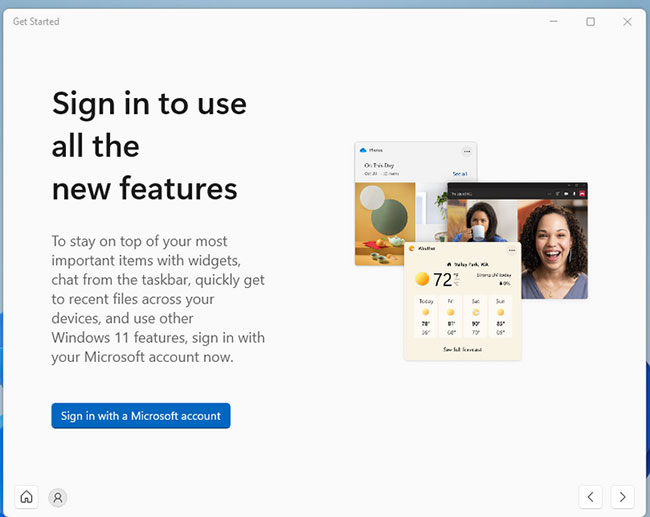
<p style="text-align: justify;"><span style="font-size:16px;">Với các phiên bản Windows mới nhất, bạn có hai tùy chọn để thiết lập tài khoản người dùng chính: Tài khoản cục bộ hoặc tài khoản Microsoft. Nếu đã sử dụng Windows được một thời gian, bạn có thể thích sử dụng tài khoản cục bộ hơn vì nó là tài khoản bạn đã quen. Nhưng thật không may, nó không còn an toàn nữa.</span></p>

<p style="text-align: justify;"><span style="font-size:16px;">Nếu bạn quan tâm đến bảo mật máy tính của mình, tốt hơn hết bạn nên sử dụng tài khoản Microsoft, đặc biệt là với những lợi thế mà tài khoản này có thể mang lại cho bạn. Đầu tiên,&nbsp;Windows Hello&nbsp;cho phép bạn đăng nhập bằng nhận dạng vân tay hoặc khuôn mặt dễ dàng. Nó cũng cho phép bạn thiết lập xác thực hai yếu tố, điều này hoàn hảo nếu bạn luôn đi du lịch ở những nơi có nguy cơ mất laptop.</span></p>

<p style="text-align: justify;"><span style="font-size:16px;">Bạn cũng có thể mã hóa ổ của mình mà không cần sử dụng bất kỳ ứng dụng bên thứ ba nào, ngay cả khi bạn đang sử dụng Windows 11 Edition. Tài khoản Microsoft cũng cho phép bạn khôi phục dữ liệu nếu bạn quên mật khẩu. Cuối cùng, nếu bạn có bất kỳ&nbsp;đăng ký Microsoft 365&nbsp;hiện có nào, bạn có thể truy cập các ứng dụng Office và bộ nhớ đám mây trên máy tính của mình.</span></p>

<p style="text-align: justify;"><span style="font-size:16px;">Một điều cuối cùng, bạn không cần địa chỉ email Microsoft để tạo tài khoản Microsoft. Bạn có thể sử dụng bất kỳ địa chỉ email nào. Nếu không muốn sử dụng bất kỳ địa chỉ email cá nhân nào của mình, bạn có thể tạo email Microsoft chỉ trong vài bước.</span></p>

<h2 style="text-align: justify;"><strong><span style="font-size:16px;">2. Loại bỏ Bloatware</span></strong></h2>

<p style="text-align: justify;"><span style="font-size:16px;">Ngoài việc bán phần mềm, Windows còn kiếm tiền bằng cách thêm các ứng dụng khác nhau trên menu Start với mỗi bản cài đặt mới. Đó là lý do tại sao bạn có thể thấy các chương trình của bên thứ ba được cài đặt trên hệ thống của mình, ngay cả khi bạn chưa tự thêm chúng.</span></p>

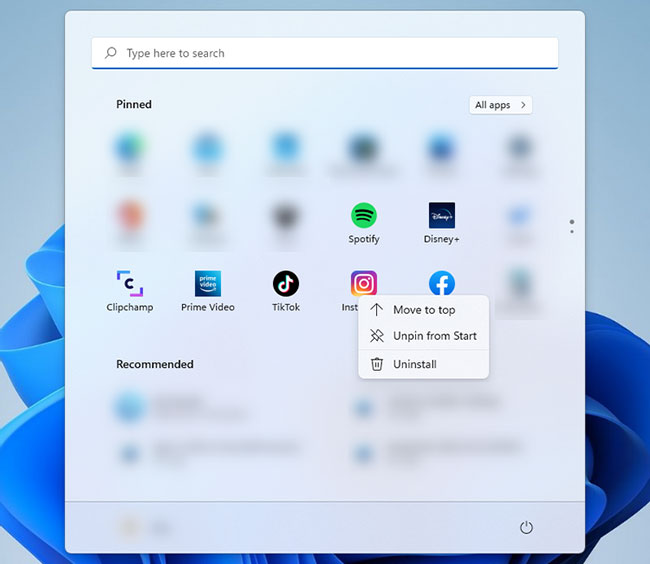
<p style="text-align: justify;"><span style="font-size:16px;">Trên Windows 10, bạn có thể thấy Candy Crush và các game khác được cài đặt, nhưng trên Windows 11, các ứng dụng phát trực tuyến như Spotify và các ứng dụng mạng xã hội như Instagram và TikTok đã thay thế các game.</span></p>

<p style="text-align: justify;"><span style="font-size:16px;">Điều này có thể gây khó chịu, đặc biệt là đối với những người dùng mới, những người không biết rằng có&nbsp;bloatware&nbsp;đã được cài đặt trên PC của họ. Nhưng tin tốt là chúng không được cài đặt theo mặc định và không chiếm nhiều bộ nhớ của bạn. Bạn cũng có thể xóa chúng chỉ trong một vài cú nhấp chuột, vì vậy mọi thứ không quá phức tạp.</span></p>

<figure>
<div style="text-align: justify;"><span style="font-size:16px;"><img alt="Gỡ bỏ ứng dụng" data-i="1" data-src="https://st.quantrimang.com/photos/image/2022/02/10/dieu-can-lam-sau-khi-cap-nhat-windows-11-2.jpg" data-was-processed="true" height="564" src="https://st.quantrimang.com/photos/image/2022/02/10/dieu-can-lam-sau-khi-cap-nhat-windows-11-2.jpg" width="650" /></span></div>

<figcaption>
<div><em><span style="font-size:16px;">Gỡ bỏ ứng dụng</span></em></div>
</figcaption>
</figure>

<p style="text-align: justify;"><span style="font-size:16px;">Tất cả những gì bạn phải làm là nhấp chuột phải vào ứng dụng không mong muốn và chọn&nbsp;<strong>Uninstall.</strong>&nbsp;Sau đó, xác nhận lựa chọn của bạn và lặp lại các bước trên tất cả các chương trình.</span></p>

<h2 style="text-align: justify;"><strong><span style="font-size:16px;">3. Tạo shortcut cho thư mục</span></strong></h2>

<p style="text-align: justify;"><span style="font-size:16px;">So với menu Start của Windows 10, Windows 11 đơn giản hơn nhiều. Bạn cũng có quyền kiểm soát để ghim các biểu tượng ở trên cùng và tạo shortcut cho các ứng dụng và danh sách tài liệu bạn đã mở gần đây. Bạn cũng có thể xem ảnh profile của mình và nút nguồn trên đó. Toàn bộ giao diện rất đơn giản. Tuy nhiên, nhiều người dùng Windows 10 không đồng tình.</span></p>

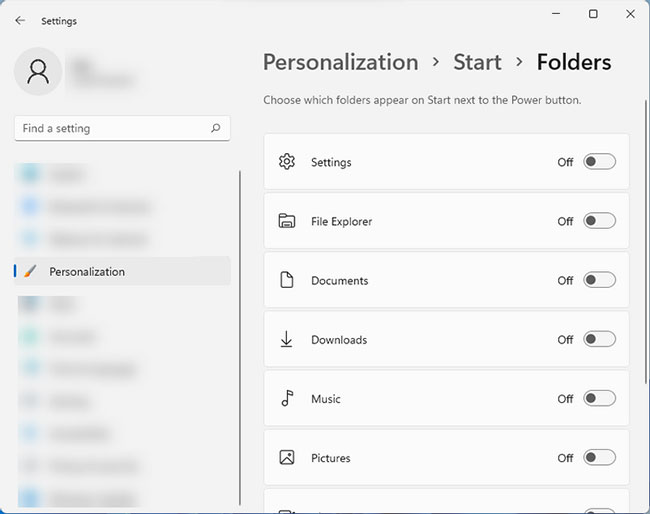
<p style="text-align: justify;"><span style="font-size:16px;">Mặc dù menu Start trông rất khác so với phiên bản trước đó, nhưng bạn có thể dễ dàng tùy chỉnh nó cho hiệu quả. Ví dụ, bạn có thể thêm các thư mục bạn thường sử dụng vào đó, vì vậy bạn sẽ không phải nhấp vào nhiều vị trí để tìm kiếm.</span></p>

<figure>
<div style="text-align: justify;"><span style="font-size:16px;"><img alt="Tạo shortcut cho thư mục" data-i="2" data-src="https://st.quantrimang.com/photos/image/2022/02/10/dieu-can-lam-sau-khi-cap-nhat-windows-11-3.jpg" data-was-processed="true" height="514" src="https://st.quantrimang.com/photos/image/2022/02/10/dieu-can-lam-sau-khi-cap-nhat-windows-11-3.jpg" width="650" /></span></div>

<figcaption>
<div><em><span style="font-size:16px;">Tạo shortcut cho thư mục</span></em></div>
</figcaption>
</figure>

<p style="text-align: justify;"><span style="font-size:16px;">Tất cả những gì bạn phải làm là đi tới&nbsp;<strong>Settings &gt; Personalization &gt; Start &gt; Folder</strong>. Trên trang này, bạn sẽ tìm thấy một tùy chọn cho phép bạn thêm các shortcut ở cuối menu Start. Tùy chọn này tương đương với các shortcut mà bạn có thể tìm thấy ở bên phải menu Start của Windows 10.</span></p>

<h2 style="text-align: justify;"><strong><span style="font-size:16px;">4. Giải phóng thanh tác vụ Windows</span></strong></h2>

<p style="text-align: justify;"><span style="font-size:16px;">Microsoft “nổi tiếng” với việc luôn tìm ra những cách mới để làm lộn xộn thanh tác vụ trong mọi phiên bản mới. Rất may, bạn có thể xóa chúng và tạo một giao diện gọn gàng hơn. Thanh tác vụ mặc định của Windows 11 có một số thứ có thể khiến nó trông lộn xộn.</span></p>

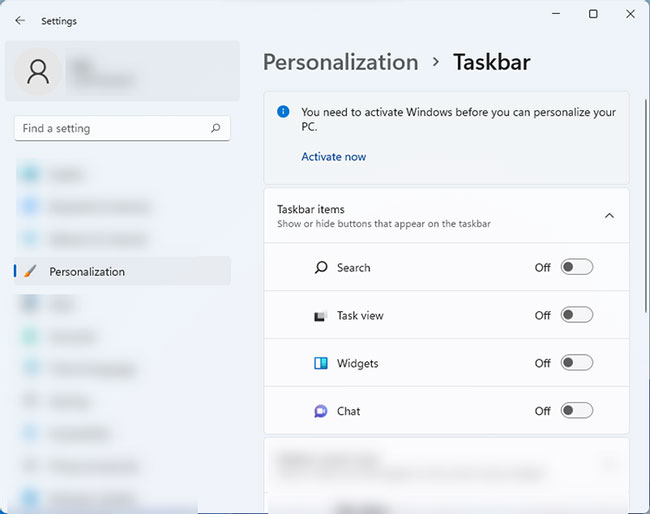
<p style="text-align: justify;"><span style="font-size:16px;">Đầu tiên, nó có một nút tìm kiếm bao gồm hộp tìm kiếm không cần thiết. Nó cũng có nút Task View mà bạn không cần vì bạn có thể mở bằng cách nhấn&nbsp;<strong>Win + Tab</strong>. Ngoài ra còn có các tiện ích không cần thiết và cuối cùng là nút trò chuyện buộc người dùng phải sử dụng Microsoft Teams.</span></p>

<figure>
<div style="text-align: justify;"><span style="font-size:16px;"><img alt="Cài đặt thanh tác vụ của Windows" data-i="3" data-src="https://st.quantrimang.com/photos/image/2022/02/10/dieu-can-lam-sau-khi-cap-nhat-windows-11-4.jpg" data-was-processed="true" height="514" src="https://st.quantrimang.com/photos/image/2022/02/10/dieu-can-lam-sau-khi-cap-nhat-windows-11-4.jpg" width="650" /></span></div>

<figcaption>
<div><em><span style="font-size:16px;">Cài đặt thanh tác vụ của Windows</span></em></div>
</figcaption>
</figure>

<p style="text-align: justify;"><span style="font-size:16px;">Nếu bạn không thấy những điều này gây phiền nhiễu, thì tốt thôi, không vấn đề gì cả. Nhưng nếu bạn giống như hầu hết những người dùng khác, bạn có thể dễ dàng làm cho tất cả chúng biến mất. Chỉ cần đi tới&nbsp;<strong>Settings &gt; Personalization &gt; Taskbar</strong>&nbsp;và tắt tất cả các tùy chọn trong những mục trên Taskbar, để có một thanh tác vụ gọn gàng hơn.</span></p>

<figure>
<div style="text-align: justify;"><span style="font-size:16px;"><img alt="Tùy chỉnh cài đặt Taskbar" data-i="4" data-src="https://st.quantrimang.com/photos/image/2022/02/10/dieu-can-lam-sau-khi-cap-nhat-windows-11-5.jpg" data-was-processed="true" height="514" src="https://st.quantrimang.com/photos/image/2022/02/10/dieu-can-lam-sau-khi-cap-nhat-windows-11-5.jpg" width="650" /></span></div>

<figcaption>
<div><em><span style="font-size:16px;">Tùy chỉnh cài đặt Taskbar</span></em></div>
</figcaption>
</figure>

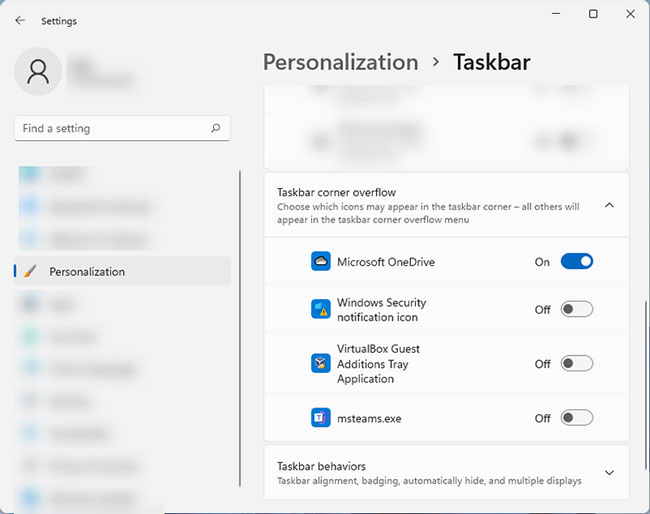
<p style="text-align: justify;"><span style="font-size:16px;">Trang&nbsp;<strong>Settings</strong>&nbsp;này cũng có các tùy chọn khác có thể cá nhân hóa trải nghiệm thanh tác vụ của bạn. Ví dụ, bạn có thể mở rộng cài đặt&nbsp;<strong>Taskbar corner overflow</strong>&nbsp;để thay đổi biểu tượng nào sẽ xuất hiện ở bên phải thanh tác vụ.</span></p>

<figure>
<div style="text-align: justify;"><span style="font-size:16px;"><img alt="Mở rộng cài đặt Taskbar corner overflow" data-i="5" data-src="https://st.quantrimang.com/photos/image/2022/02/10/dieu-can-lam-sau-khi-cap-nhat-windows-11-6.jpg" data-was-processed="true" height="514" src="https://st.quantrimang.com/photos/image/2022/02/10/dieu-can-lam-sau-khi-cap-nhat-windows-11-6.jpg" width="650" /></span></div>

<figcaption>
<div><em><span style="font-size:16px;">Mở rộng cài đặt Taskbar corner overflow</span></em></div>
</figcaption>
</figure>

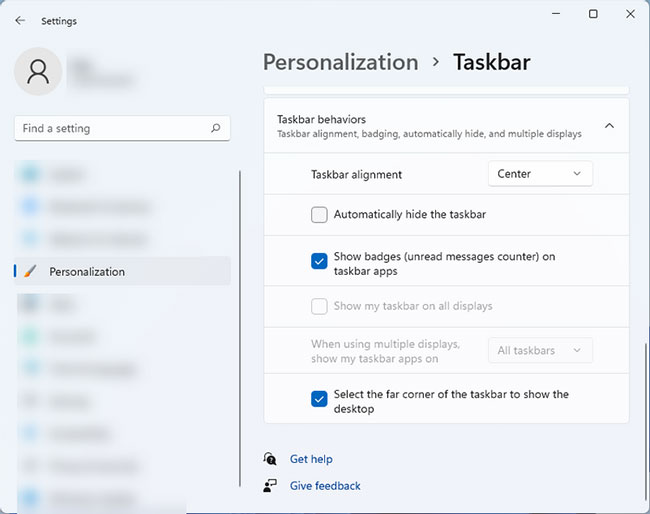
<p style="text-align: justify;"><span style="font-size:16px;">Nếu đang sử dụng nhiều màn hình, bạn có thể thay đổi cách thanh tác vụ hoạt động trên màn hình thứ hai bằng cách nhấp vào tùy chọn&nbsp;<strong>Taskbar behaviors.</strong></span></p>

<h2 style="text-align: justify;"><strong><span style="font-size:16px;">5. Thiết lập OneDrive</span></strong></h2>

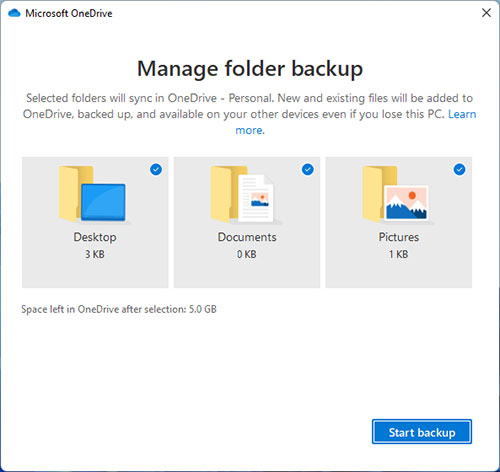
<p style="text-align: justify;"><span style="font-size:16px;">Khi đăng nhập bằng tài khoản Microsoft, bạn sẽ nhận được 5GB bộ nhớ đám mây miễn phí trong&nbsp;Microsoft OneDrive. Nếu bạn chưa sử dụng nó trước đây, việc cấu hình có thể hơi khó hiểu, nhưng đừng lo lắng. Bạn có thể nhanh chóng làm quen.</span></p>

<p style="text-align: justify;"><span style="font-size:16px;">Nếu bạn mở ứng dụng, Windows sẽ mở ra một cửa sổ trông giống hệt như File Explorer thông thường với các thư mục&nbsp;<strong>Desktop, Documents, Downloads</strong>&nbsp;và&nbsp;<strong>Picture</strong>&nbsp;trong đó. Đây là phần khiến nó khó hiểu, nhưng những thư mục này là một phần của ứng dụng OneDrive và mọi thứ bạn lưu trong chúng sẽ được sao lưu trong tài khoản của bạn. Tuy nhiên, nếu bạn có sẵn bộ nhớ dự phòng, hãy tắt tính năng này.</span></p>

<figure>
<div style="text-align: justify;"><span style="font-size:16px;"><img alt="Thiết lập OneDrive" data-i="6" data-src="https://st.quantrimang.com/photos/image/2022/02/10/dieu-can-lam-sau-khi-cap-nhat-windows-11-7.jpg" data-was-processed="true" height="472" src="https://st.quantrimang.com/photos/image/2022/02/10/dieu-can-lam-sau-khi-cap-nhat-windows-11-7.jpg" width="500" /></span></div>

<figcaption>
<div><em><span style="font-size:16px;">Thiết lập OneDrive</span></em></div>
</figcaption>
</figure>

<p style="text-align: justify;"><span style="font-size:16px;">Để thay đổi cài đặt của OneDrive, hãy mở OneDrive từ khu vực thông báo và bấm vào&nbsp;<strong>Help &amp; Settings &gt; Settings &gt; Backup &gt; Manage OneDrive backup</strong>. Thao tác này sẽ hướng bạn đến cài đặt sao lưu OneDrive.</span></p>
		</div>
				<div id="author">
						<p>
				<strong>Nguồn tin:</strong>
				quantrimang.com
			</p>
		</div>
				<div class="copyright">
		</div>
	</div>
	<div id="footer" class="clearfix">
		<div id="url">
			<strong>URL của bản tin này: </strong><a href="https://cm.pek.edu.vn/vi/news/savefile/thong-tin-cong-nghe/nhung-dieu-can-lam-sau-khi-cap-nhat-len-windows-11-315.html" title="Những điều cần làm sau khi cập nhật lên Windows 11">https://cm.pek.edu.vn/vi/news/savefile/thong-tin-cong-nghe/nhung-dieu-can-lam-sau-khi-cap-nhat-len-windows-11-315.html</a>

		</div>
		<div class="clear"></div>
		<div class="copyright">
			&copy; HỆ THỐNG CHUYÊN MÔN TRƯỜNG PÉTRUS KÝ
		</div>
		<div id="contact">
			<a href="mailto:"></a>
		</div>
	</div>
</div>
        <div id="timeoutsess" class="chromeframe">
            Bạn đã không sử dụng Site, <a onclick="timeoutsesscancel();" href="https://cm.pek.edu.vn/#">Bấm vào đây để duy trì trạng thái đăng nhập</a>. Thời gian chờ: <span id="secField"> 60 </span> giây
        </div>
        <div id="openidResult" class="nv-alert" style="display:none"></div>
        <div id="openidBt" data-result="" data-redirect=""></div>
        <a href="javascript:void(0);" class="scrollup" ><i class="fa fa-arrow-up" aria-hidden="true"></i></a>
<script src="https://cm.pek.edu.vn/assets/js/jquery/jquery.min.js"></script>
<script>
          var txt = "__™(¯`¦ HỆ THỐNG CHUYÊN MÔN TRƯỜNG PÉTRUS KÝ ¦´¯)™__"; // Thay đổi thành tiêu đề của trang web của bạn
            var delay = 100; // Thay đổi giá trị delay tại đây (giá trị tính bằng mili giây)
            var titlePosition = 0; // Vị trí hiện tại của tiêu đề

            function animateTitle() {
                var title = txt.substr(titlePosition) + " " + txt.substr(0, titlePosition); // Tạo chuỗi tiêu đề mới dựa trên vị trí hiện tại
                document.title = title; // Cập nhật tiêu đề trên trình duyệt
                titlePosition = (titlePosition + 1) % txt.length; // Cập nhật vị trí hiện tại của tiêu đề
            }
            setInterval(animateTitle, delay); // Thực hiện cập nhật tiêu đề theo chu kỳ
        </script>
<script>
var nv_base_siteurl="/",nv_lang_data="vi",nv_lang_interface="vi",nv_name_variable="nv",nv_fc_variable="op",nv_lang_variable="language",nv_module_name="news",nv_func_name="savefile",nv_is_user=0, nv_my_ofs=-4,nv_my_abbr="EDT",nv_cookie_prefix="nv4",nv_check_pass_mstime=59878000,nv_area_admin=0,nv_safemode=0,theme_responsive=1,nv_recaptcha_ver=2,nv_recaptcha_sitekey="",nv_recaptcha_type="image",XSSsanitize=0;</script>
<script src="https://cm.pek.edu.vn/assets/js/language/vi.js"></script>
<script src="https://cm.pek.edu.vn/assets/js/global.js"></script>
<script src="https://cm.pek.edu.vn/assets/js/site.js"></script>
<script src="https://cm.pek.edu.vn/themes/default/js/news.js"></script>
<script src="https://cm.pek.edu.vn/themes/default/js/main.js"></script>
<script src="https://cm.pek.edu.vn/themes/default/js/custom.js"></script>
<script type="application/ld+json">
        {
            "@context": "https://schema.org",
            "@type": "Organization",
            "url": "https://cm.pek.edu.vn",
            "logo": "https://cm.pek.edu.vn/uploads/banner-nam-2024.png"
        }
        </script>
<script>
            var isMobile = /iPhone|iPad|iPod|Android/i.test(navigator.userAgent);
            var myAudio = document.getElementById('myAudio');

            if (isMobile) {
                document.addEventListener('touchstart', function() {
            if (myAudio.paused) {
                myAudio.play();
                    }
                });
            } else {
                myAudio.play(); // Phát audio tự động trên máy tính
            }
        </script>
<script async src="https://www.googletagmanager.com/gtag/js?id=G-RPQDS0572Z"></script>
<script>window.dataLayer=window.dataLayer||[];function gtag(){dataLayer.push(arguments)}gtag('js',new Date);gtag('config','G-RPQDS0572Z');</script>
<script src="https://cm.pek.edu.vn/themes/default/js/bootstrap.min.js"></script>
<script type='text/javascript'> 
            $(document).ready(function () {

            $(window).scroll(function () {
                if ($(this).scrollTop() > 100) {
                    $('.scrollup').fadeIn();
                    $('.right-controls').fadeIn();
                } else {
                    $('.scrollup').fadeOut();
                     $('.right-controls').fadeOut();
                }
            });
            $('.scrollup').click(function () {
                $("html, body").animate({
                    scrollTop: 0
                }, 600);
                return false;
            });
        });
        </script>
</body>
</html>